











[Home][19. Batch Job]
19. Batch Job
We have been using the batch commands throughout this guide. Now, we introduce the Batch commands. When matching images, you will need to select many filters. For each selected filter, you will need to select many parameters.
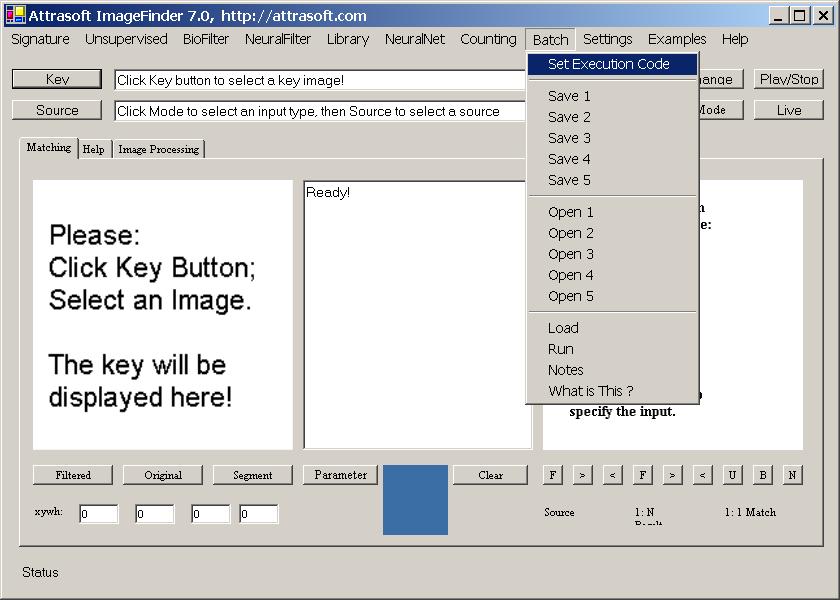
Figure 19.1 Batch Menu.
If this is your first matching and you do not like the default values, you will have go through a trial and error process.
However, if this is your second matching, you can save everything in the first matching and then use a Batch command. Click the "Batch/Save" menu command; you will get the batch file in the text area.
Chapter contents include:

[Home][About][1. Introduction][2. Overview][3. GUI][4. Image Signatures][5. Unsupervised Filters][6. Results & Analysis][7. BioFilters][8. NeuralFilters][9. Duplicated Documents][10. Face Recognition][11. Auto Part Recognition][12. Dynamic Library][13. NeuralNet Filter][14. Segment Variation][15. TV Advertisements][16. Counting & Tracking][17. Image PreProcessing][18. Image Processing][19. Batch Job][20. Parameters][21. Input Option][22. Application Developers][23. Reference Manual][24. Support Services][25. Readme.txt]
Copyright (c) 1998 - 2006 Attrasoft, Inc. All rights reserved.