
4.2 Key Signature
You can collect the signature(s) of the left image, the right image, and all of the images in a folder.
To compute the signature of an image:
-
Click the “Key” button to select a key image or sample image;
-
Click the “Signature/Left Signature (Key)” to compute the signature.
Example. Left Signature.
To continue from Figure 3.4, click the Clear button to clear the text box. Click “Signature/Left Signature (Key)” and you will see Figure 4.2.
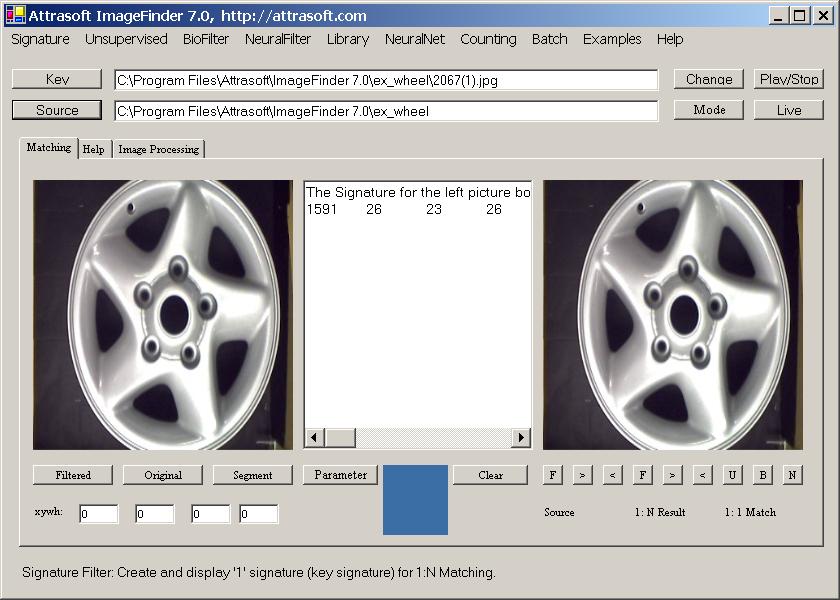
Figure 4.2 Click “Signature/Left Signature (Key)”.
The Signature looks like:
1591 26 23 26 23 …
Similarly, Click “Signature/Right Signature” and you will get an image signature for the right image.
In 1:1 Matching or 1:N Matching, the signatures are computed behind the screen; you do not need to use the signature directly. The menu item “Signature/Left Signature (Key)” shows you the mechanism behind the screen so you can see what a signature looks like.

Copyright (c) 1998 - 2006 Attrasoft, Inc. All rights reserved.