
3.2 Entering 1-Image
In the ImageFinder, there are two picture boxes and a text area in Figure 3.2.
-
The left picture box will show the sample image, key image, or 1-Image.
-
The right picture box will show one of the source images.
-
The center text area will display computation messages.
In a 1:1 Matching, you will enter a key image (1-image) and a search image (1-image).
In a 1:N Matching, you will enter a key image (1-image) and a directory (folder), containing many images (N-images or search images).
In an N:N Matching, you will enter a folder (N-images) only.
We will discuss N:M Matching later.
There are two long text boxes on the top, one for the key image (1-image) and one for the search director/folder (N-images). To enter 1-image, click the Key button before the first long text box, and select an image.
Example. Select a key image:
-
Click the “Key” button;
-
Select image, ./ex_wheel/ 2067(1).jpg, here “./” meaning the folder where the ImageFinder is located; The default location is:
“.\” = “c;\program files\Attrasoft\ImageFinder 7.0\”.
Now you will see Figure 3.3.
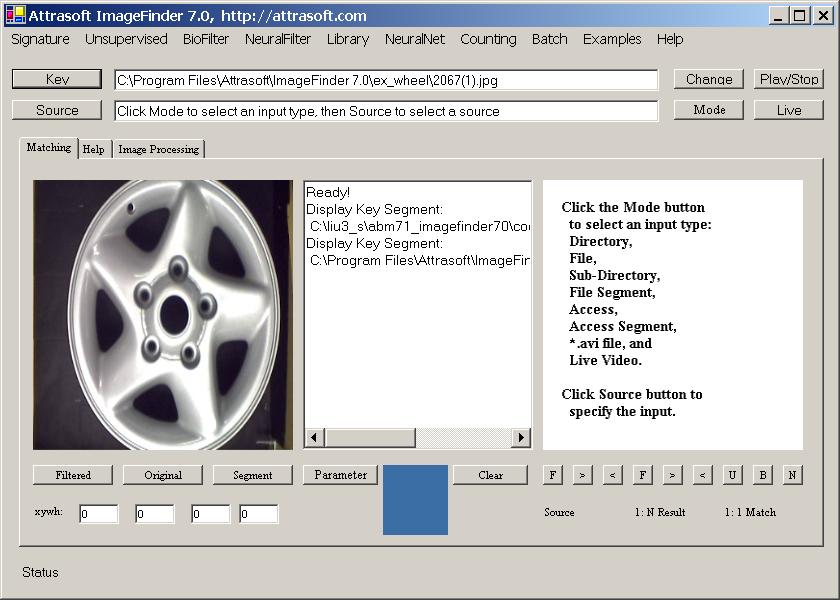
Figure 3.3 1-Image.

Copyright (c) 1998 - 2006 Attrasoft, Inc. All rights reserved.