











20.7 NeuralNet Filter
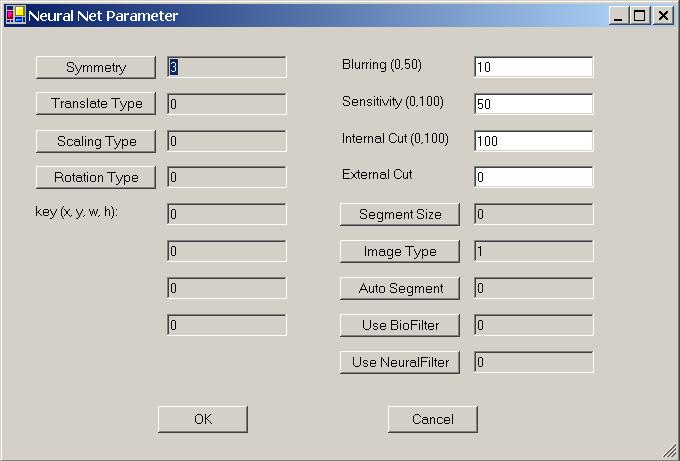
Figure 20.8 Neural Net Parameter.
The available NeuralNet filters are:
-
100x100 (Most Accurate)
-
90x90
-
80x80
-
70x70
-
60x60
-
50x50 (Least Accurate)
Let the speed of 100x100 filter be a base, then the overall speed for:
-
90x90 filter is 1 times faster;
-
80x80 filter is 1.6 times faster;
-
70x70 filter is 2.7 times faster;
-
60x60 filter is 5 times faster; and
-
50x50 filter is 10 times faster.
The NeuralNet Filter has many parameters. The following sections will explain these parameters.
20.7.1 Symmetry
Symmetry or Invariance means similarity under certain types of changes. For example, considering two images, one with a face in the middle and the other with the face moved to the edge; we say these two images are similar because of the face.
The symmetry defines "similar images". The Attrasoft ImageFinder supports five symmetry settings:
-
No symmetry (0);
-
Translation symmetry (3);
-
Scaling symmetry (4);
-
Rotation symmetry (5); and
-
Rotation & Scaling symmetries (6).
The numbers are the codes in the batch file. Currently, Scaling symmetry and Oblique symmetry are the same.
Other symmetries, or combination of symmetries, can be built for Customized Orders.
A customized Attrasoft ImageFinder can implement any symmetry (or combination of symmetries), which can be described by mathematics.
However, symmetries are computationally expensive.
Every symmetry setting has the Translation symmetry, except "No Symmetry". In addition, each of the above settings support:
-
Intensity symmetry.
Symmetries are computationally expensive, meaning it will take a longer time to do the job. You should use them only when they are required.
To set the Symmetry, keep clicking the Symmetry button; the setting will switch from one to the next each time you click the button. The default setting in this version is Translation Symmetry.
For example, it seems that Stamp Recognition requires Translation and Rotation symmetries. But because the edges of a stamp can be detected easily, the stamp can be rotated and shifted to a fixed position where the horizontal side is longer than the vertical side. All you need to do is recognize a stamp or an upside-down stamp. Therefore, Stamp Recognition does not really require Translation and Rotation symmetries.
20.7.2 Translation Type
The Translation Type defines the accuracy of the Translation symmetry.
The Translation Type settings (and their codes) are:
-
Most Accurate (0);
-
Accurate (1); and
-
Least Accurate (2).
To set the Translation Type, keep clicking the �T Type� button; the setting will switch from one to the next each time you click the button. The default setting is 0, the most accurate setting.
20.7.3 Scaling Type
The Scaling Type defines the accuracy of the Scaling symmetry.
The Scaling Type settings (and their codes) are:
-
Least Accurate (0);
-
Accurate (1);
-
Accurate (2); and
-
Most Accurate (3).
To set the Scaling Type, keep clicking the �T Type� button; the setting will switch from one to the next each time you click the button. The default setting is 0, the least accurate setting.
20.7.4 Rotation Type
The Rotation Type defines the accuracy of the Rotation symmetry.
The Rotation Type settings (and their codes) are:
-
360� rotation, least accurate (0);
-
-5� to 5� rotation (1);
-
-10� to 10� rotation (2);
-
360� rotation, accurate (3);
-
360� rotation, more accurate (4);
-
360� rotation, most accurate (5).
To set the Rotation Type, keep clicking the �Rotation Type� button; the setting will switch from one to the next each time you click the button. The default setting is 360� rotation, the least accurate setting (0).
20.7.5 Area of Interest (AOI)
Selecting an image segment is very important for training.
-
Use image segments for searching similar images.
-
Only use the whole image for exact matches.
Training requires an "Area of Interest" (AOI) or "Set Focus", which selects a key-segment. If an AOI is not chosen, the whole image is the AOI. Four numbers specify AOI: the upper-left corner coordinates, and the length & width. Once the segment specification is successful, a box will cover the selected area. When you look at the training image, if the selected area is not what you want, just re-select the area again and click the Segment button.
The default setting is the whole image; the code is (x y w h) = (0 0 0 0). (0000) means ignore the segment. The units are pixels.
There are two situations where you should create a new sample image out of a sample segment:
-
You repeatedly use an image segment;
-
The image segment is not a rectangle; say a polygon.
The Windows Paint program will help you to create an image from a segment. When you create an image segment, please do not change the original image size. For example, if your image is 512x512 and you want create a segment of 400x200, please paste the 400x200 segment into a 512x512 empty image.
20.7.6 Blurring
This is one of the most important search parameters and the first parameter you should adjust.
Blurring compensates for minor image changes, which are not visible to human eyes. For example, if you use software to compress an image, to change the intensity of an image, or to translate, scale, or rotate an image, the image will be distorted a bit at the pixel level. You have to set �Blurring� to compensate for this.
The Blurring setting ranges from 0 to 50. The default setting is 10. You should set the parameters in the following order:
-
Blurring, Internal Weight Cut, Sensitivity, External Weight Cut.
To Summarize:
-
When a search yields no results, increase Blurring;
-
When a search yields too many results, decrease Blurring.
20.7.7 Sensitivity
The Sensitivity parameter ranges from 0 (least sensitive) to 100 (most sensitive).
-
To search small segment(s), use high sensitivity search.
-
To search large segment(s), use low sensitivity search.
-
The higher this parameter is, the more results you will get.
The Sensitivity parameter ranges from 0 to 100. The default is 50. To Summarize:
-
When a search yields no results, increase sensitivity;
-
When a search yields too much result, decrease sensitivity.
20.7.8 Internal/External Weight Cut
You can set the "Internal Weight Cut" (Internal Cut) or "External Weight Cut" (External Cut) to list only those retrieved images with scores or weights greater than a certain value (called Threshold).
It is better to give no answer than a wrong answer.
Assume you are searching images and all similar images have weights ranging from 1,000 to 10,000. It is possible that some other images pop up with weights ranging from 10 to 100. To eliminate these images, you can set the �External Weight Cut� to 1,000.
The Internal Cut plays a similar role as the External Cut. There are two differences between these two cuts:
-
The Internal Cut ranges from 0 to 99; the External Cut can be any number;
-
The Internal Cut stops the images from coming out, whereas the External Cut can bring the eliminated images back if you set the External Cut to 0. You might need to see the eliminated images sometimes for the purpose of adjusting the parameters.
To Summarize:
-
Set the �Internal Cut� or �External Cut� to eliminate errors.
20.7.9 Segment Size
The ImageFinder is currently tuned to search for large image segments (size of the whole image). It can look for small segments via the "Small Segment" setting; however, only Translation symmetry is supported for small segments.
A Customized Version can be ordered for other symmetries.
To search large segments, use setting 0.
To search small segments, use setting 1.
For example:
-
If a sample segment is one quarter of the sample image, it is a large segment.
-
If the segment is 1/20 of the sample image, it is a small segment.
Currently, "S Segment" only supports Translation symmetry. If you need Rotation or/and Scaling symmetry, please use "L Segment".
Other symmetries can be added in a Customized Version.
20.7.10 Image Type
There are BW and Color images. For each of them, there are �sum-search�, �maximum-search�, and �average-search�. This generates 6 image types:
-
BW Sum
-
BW Max
-
BW Avg
-
Color Sum
-
Color Max
-
Color Avg
"BW Sum� is like an integration of function f (x).
"BW Max� is like a maximum value of f (x); and
"BW Avg� is the average of the above two.
"Color Sum� is like an integration of function f (x).
"Color Max� is like a maximum value of f (x); and
"Color Avg� is the average of the above two.
To set the image type, keep clicking the Image Type button; the setting will switch from one to the next each time you click the Image Type button.
20.7.11 Use BioFilter & Use Neural Filter
These two parameters, �Use BioFilter� and �Use NeuralFilter� will decide whether the BioFilter and NeuralFilter will be used before the NeuralNet Filter is used to eliminate some images.
20.7.12 Auto Segment
The training segment can be specified in two ways:
Manual Specification
Automatic Specification
The default is Manual Specification. In this setting the segment will be specified by the four text boxes (x, y, w, h), as we discussed earlier.
If you do not want to pick up a training segment, then let the ImageFinder pick up the segment for you by using the Automatic Specification. This parameter has several settings:
NO Auto Segment
Very Large Segment
Very Large Segment
Large Segment
Large Segment
Medium Segment
Medium Segment
20.7.13 Summary
The NeuralNet filter is hard to use because it has so many parameters. Not all parameters are equal. We divide the parameters into two groups. The beginners should use only parameters in the first group. Note that:
-
The most important parameters for Training are Image Processing, AOI, Symmetry, and Segment Cut (in the Reduction Filter).
-
The most important parameters for Matching are Blurring, and Sensitivity.
In a typical search, you will set these parameters and leave other parameters with default values. These are the 7 parameters you should focus on first:
Training (3 parameters):
-
Segment: selecting �Large AutoSeg 3� so the ImageFinder will select a training segment for you at the beginning.
-
Symmetries
-
Segment Cut (in the Reduction Filter)
Matching (4 parameters):
-
Sensitivity
-
Blurring
-
External Weight Cut
-
Internal Weight Cut
Ignore the rest of the parameters at the beginning.

Copyright (c) 1998 - 2006 Attrasoft, Inc. All rights reserved.