
20.6 Neural Filters
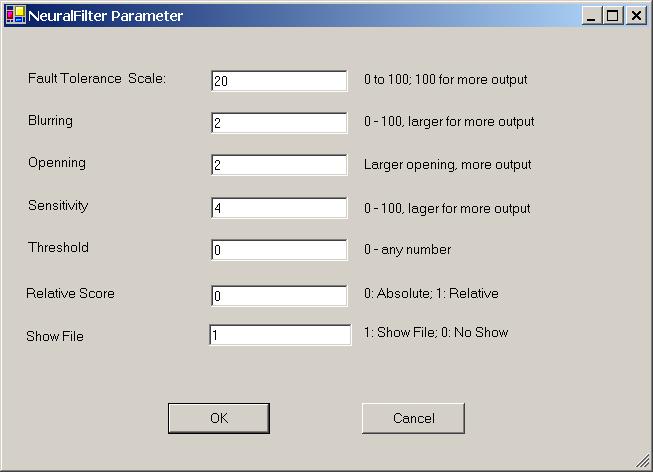
Figure 20.7 NeuralFilter Parameter.
Fault Tolerance Scale
Use this parameter to control the amount of output. This parameter ranges from 0 to 100. The larger this number is, the more matches you will get. To set this parameter, enter a number between 0 and 100 to the text box.
Blurring
Use this parameter to control the amount of output. This parameter ranges from 0 to 100. The larger this number is, the more matches you will get. To set this parameter, enter a number between 0 and 100 to the text box.
Sensitivity
Use this parameter to control the amount of output. This parameter ranges from 0 to 100. The larger this number is, the more matches you will get. To set this parameter, enter a number between 0 and 100 to the text box.
Threshold
The result of image comparison is a "score", indicating the degree to which a match exists. This score is then compared to a pre-set Threshold to determine whether or not to declare a match. This parameter sets the threshold. To decide what threshold to use, you should make a test run first and look at the scores. Matching images have higher scores; unmatched images have lower scores. Select a threshold to separate these two groups. There will be a few images in the middle, representing both groups. Under these circumstances, the threshold selection depends on your application.
Relative Score
Use the relative score to set the range of matching scores between 0 and 100.
Neural Filter Opening
This parameter controls the amount of output. This parameter has 5 settings:
Very Large
Large
Normal
Small
Very Small
Large openings will allow more output than small openings. To set the parameter, keep clicking the button; the setting will switch from one to the next each time you click the Blurring button.
Show File
This parameter is set to 1 by default, which will show the output file. If this parameter is set to 0, then output file will not be shown.

Copyright (c) 1998 - 2006 Attrasoft, Inc. All rights reserved.