





18.1 Good & Bad
The principle of choosing the image preprocessing and processing filters is to make the sample objects stand out, otherwise change the options.
Do not make too many things stand out, i.e. as long as the area of interest stands out, the rest should show as little as possible.
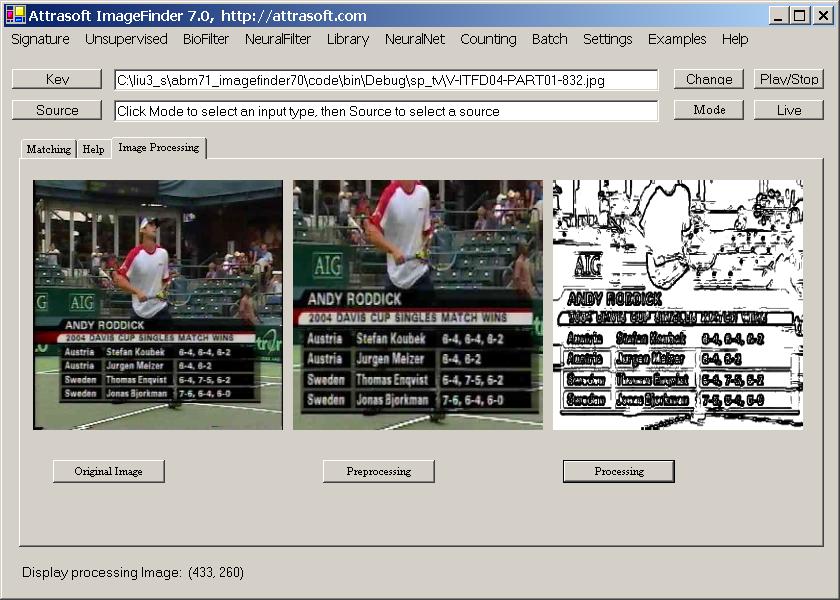
Figure 18.1 Bad Image Processing Example.
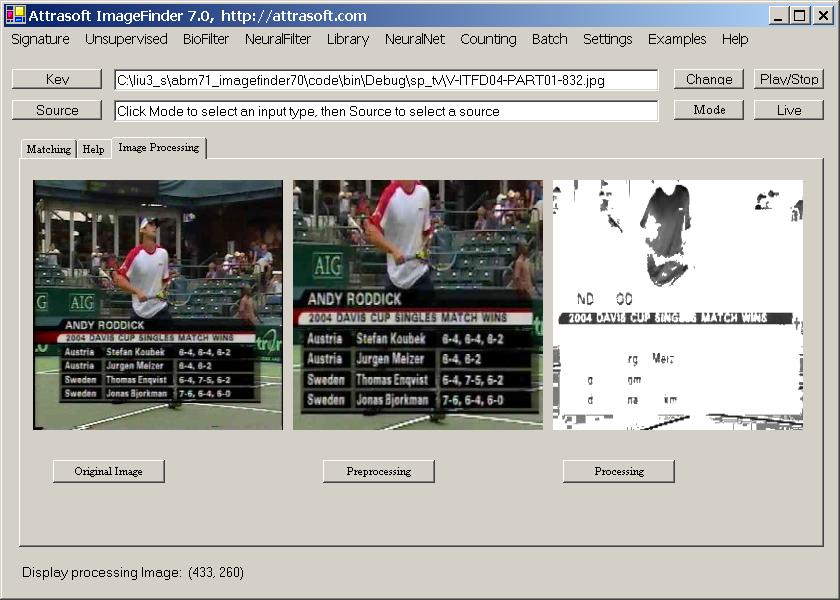
Figure 18.2 Good Image Processing Example.
In Figure 18.1, the first image is the selected key image. The objective is to identify the logo, “2004 Davis Cup …”.
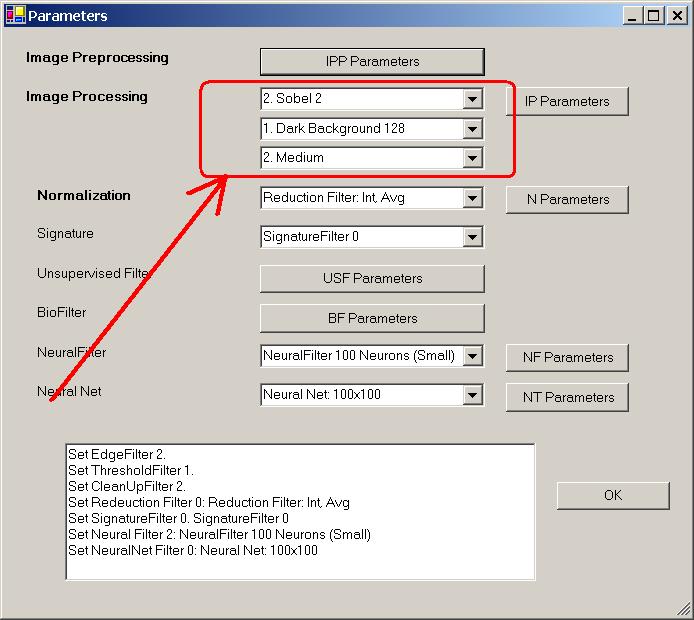
Figure 18.3 shows the default setting.
First of all, let us use the default setting:
Edge Filter = 2
Threshold Filter = 1
Clean-Up Filter = 2
The second image in Figure 18.1 is a preprocessed image; and the third image is the processed image. This is a bad example of image processing, because the sample object, “2004 Davis Cup …”, does not stand out.
Now, we will try a different setting:
Edge Filter = 0
Threshold Filter = 1
Clean-Up Filter = 16
The third image in Figure 16.2 is the processed image. This is a good example of image processing, because the sample object, “2004 Davis Cup …”, does stand out.

Copyright (c) 1998 - 2006 Attrasoft, Inc. All rights reserved.