
11.3 Parameters
The NeuralFilter Matching will be used for the Auto Part Recognition; there are five steps:
-
Parameters
-
Signatures
-
Training
-
Matching
-
Analysis
The ImageFinder has many parameters. Changing these parameters will change the output of the computations. Clicking the Parameter button, which will open the Parameter Window in Figure 11.1, sets the Parameters. You will adjust the ImageFinder parameters here.
We will set several parameters in this chapter:
-
Signature Filter = “Signature Filter 9” (See Figure 11.1)
-
Preprocessing Filter/Skip Empty Border = 6 (See Figure 11.2)
-
Preprocessing Filter/Skip Percent = 5 (See Figure 11.2)
-
Preprocessing Filter/Skip Threshold Filter = 1 (See Figure 11.2)
-
Preprocessing Filter/Skip Edge Filter = 2 (See Figure 11.2)
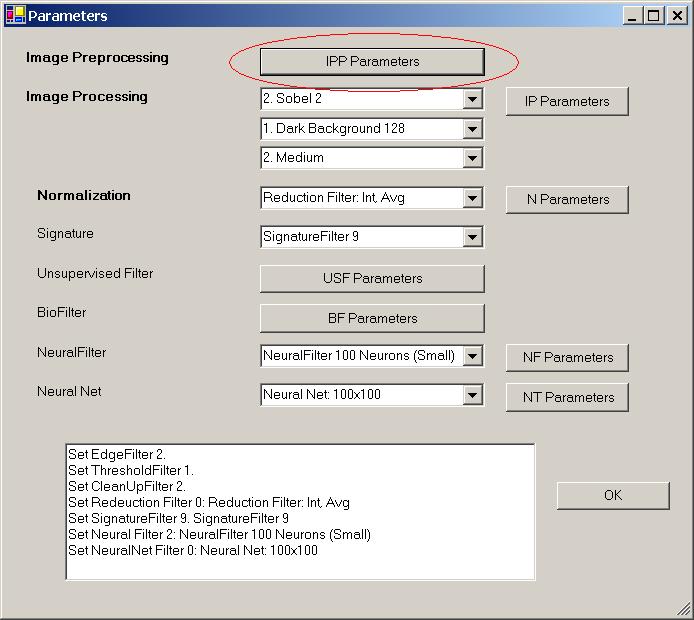
Figure 11.1 IPP (Image Pre-Processing) Filter parameters.
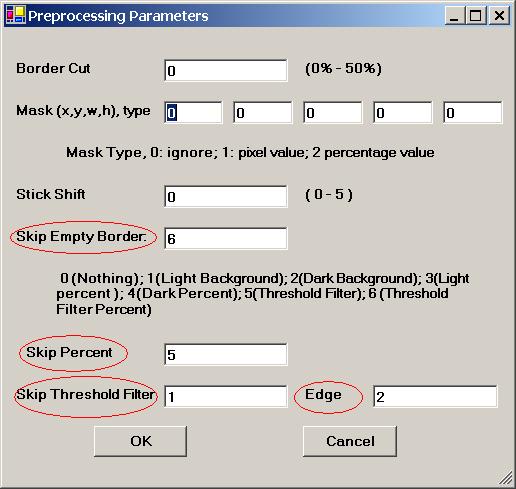
Figure 11.2 Preprocessing Filter parameters. Set Preprocessing Filter/Skip Empty Border = 6, Preprocessing Filter/Skip Percent = 5, Preprocessing Filter/Skip Threshold Filter = 1, Preprocessing Filter/Skip Edge Filter = 2.
Setting:
-
The Signature Filter will be set to “Signature Filter 9” (See Figure 11.1).
-
Click the IPP (Image Pre-Processing) Parameter button in Figure 11.1, you will get Figure 11.2. Set the parameters.

Copyright (c) 1998 - 2006 Attrasoft, Inc. All rights reserved.